Back to blog
Product

How to chat with PDFs: a practical guide

Stop scrolling and start asking. Here’s how to get real answers from your PDFs using natural questions—and what to expect from a document AI workspace.

MindParse AI5 min read

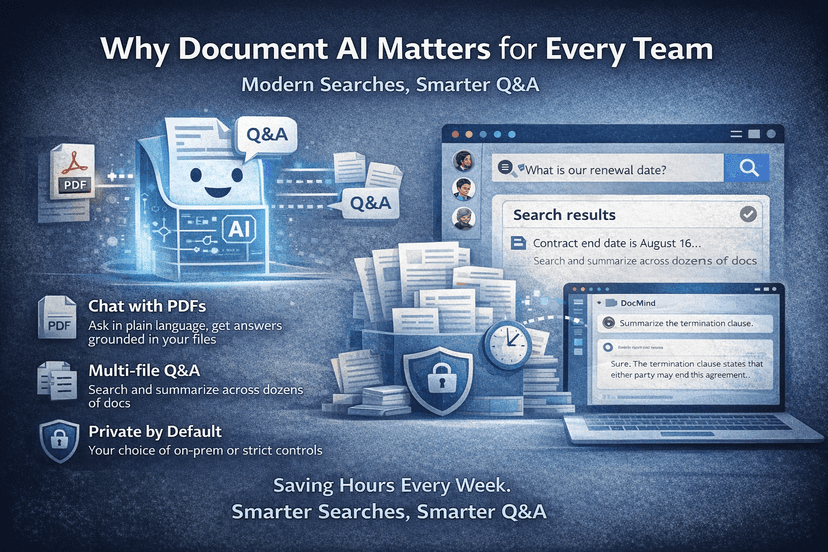
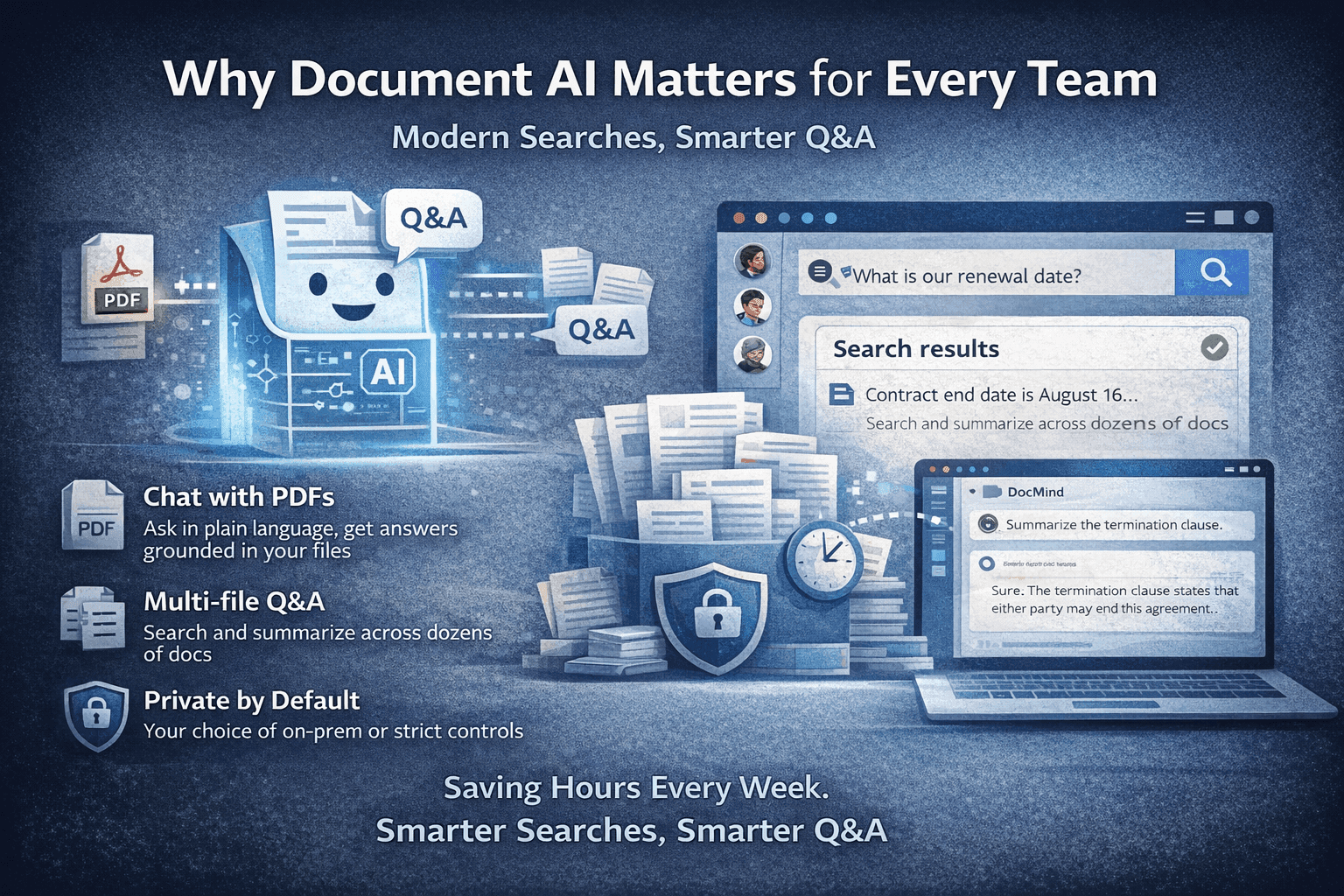
If you’ve ever opened a long PDF and thought “where did they mention the renewal date?” you’re not alone. Chat with PDF isn’t magic—it’s a workspace that indexes your file and answers from its text. Here’s how it works in practice, how to write good questions, and where it fits inside MindParse AI.

What “chat with PDF” actually means

You upload a PDF (or several) into a workspace. The system indexes the content (and, in MindParse AI’s case, also makes it searchable alongside your other files). When you ask a question in plain language—“What’s the termination clause?” or “Summarize the key deadlines”—the AI answers using only that document. No more Ctrl+F with five different phrases until something sticks.

In MindParse AI, the PDF lives in a workspace, not in a one-off session. That means you can come back later, ask follow‑ups, or add related files without starting over.

Which PDFs work best

Not every PDF is equally helpful. You’ll get the most out of chat‑with‑PDF when:

  • The PDF is mostly text (contracts, reports, manuals, policies, research papers).
  • The questions you care about are actually answered in the file.
  • You’re willing to click citations and read key sections when something matters.

Scanned images or documents with messy OCR can still work, but the underlying text quality matters. If you can’t copy/paste the text from your PDF, clean‑up or re‑exporting it usually improves results.

How to use chat with PDF in MindParse AI (step by step)

1. Create or open a workspace (e.g. “Client A – Contracts” or “Q2 Board Pack”). 2. Upload one or more PDFs you actually care about—don’t start with a random sample. 3. Wait for indexing to finish (MindParse AI shows status inside the app). 4. Start a chat and reference the PDF (or keep the scope on “All documents” if you have just a few). 5. Ask a concrete question: - “What is the initial term and renewal period in this agreement?” - “Summarize the main risks called out in this report.” - “List all safety warnings in this manual.” 6. Read the answer and click through to the cited passages before you rely on it. 7. Ask follow‑ups to narrow or re‑focus the answer, e.g. “Only show financial risks,” or “Compare that to the previous version of this contract.”

What works best in practice

  • Clear questions – Specific questions (“What are the payment terms?”) usually get better answers than very broad ones (“Tell me everything”).
  • One intent per question – “Summarize the timelines in this report” is easier to answer than “summarize, critique, and translate this report.”
  • Follow‑ups – Ask a follow‑up to narrow or expand; the conversation stays in context.
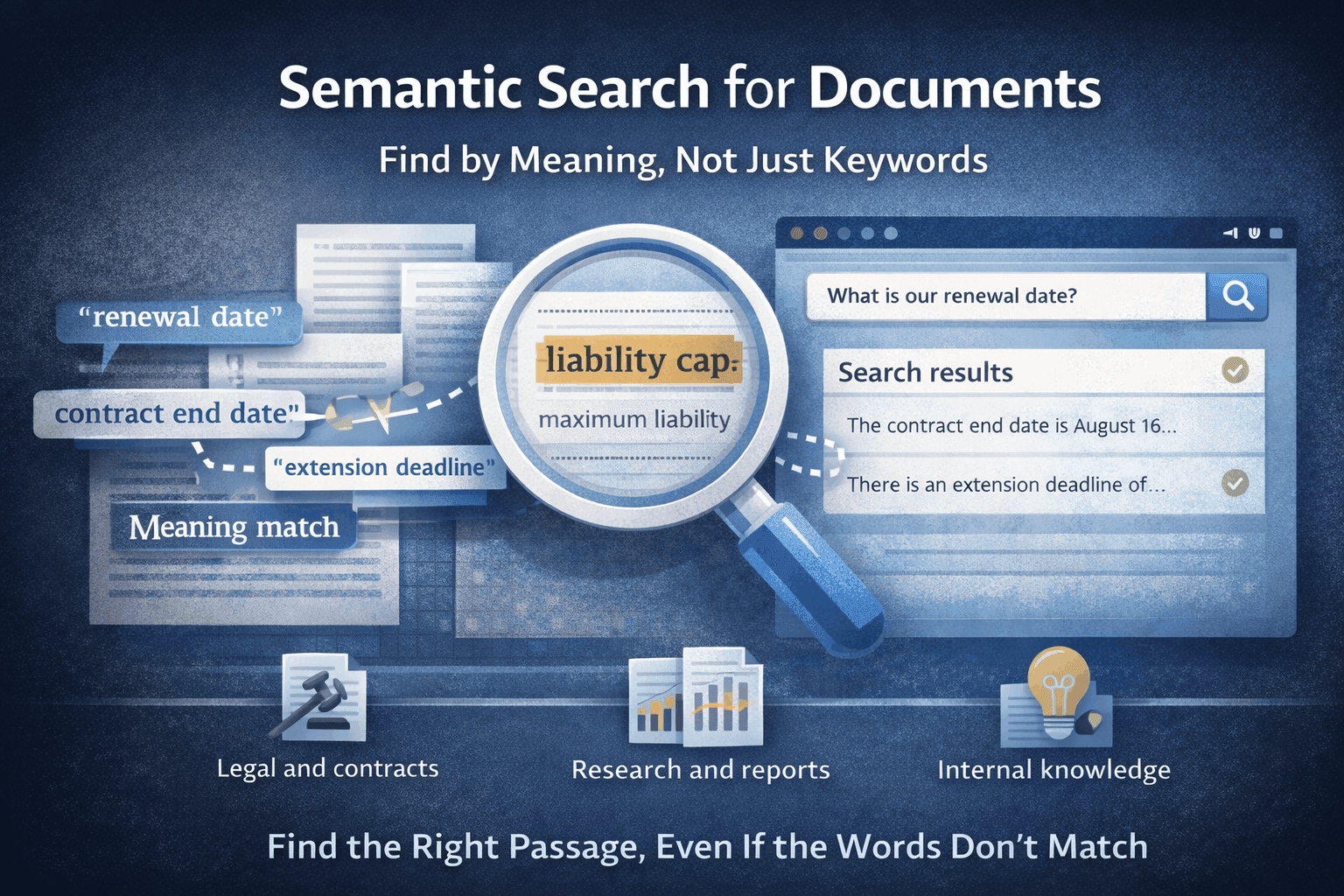
  • Combining with search – Use semantic search to jump to a section, then ask chat for an explanation of that section.

Here are a few example prompts that map well to real workflows:

  • Legal / contracts - “What does this agreement say about termination, including notice periods?” - “Extract all references to late fees and interest and show them as bullet points.”
  • Operations / policies - “Summarize the steps for handling a high‑severity incident from this runbook.” - “List all roles mentioned in this policy and their responsibilities.”
  • Research / reports - “Summarize this report’s key findings in 5 bullets for an executive audience.” - “What are the main limitations the authors mention?”

Using multiple PDFs, not just one

Most real‑world questions touch more than one file: multiple contracts in a portfolio, several research papers, a set of policies. MindParse AI’s chat with multiple PDFs feature lets you:

  • Ask “Which of these contracts mentions arbitration?” across a folder.
  • Summarize the findings of several research PDFs in one answer.
  • Compare clauses across similar agreements without opening each individually.

That’s why the core product pages for '/chat-with-pdf' and '/chat-with-multiple-pdfs' are designed to work together: single‑file chat is great for depth; multi‑PDF chat is great for patterns.

Privacy and where it runs

Your PDFs can stay on your machine. If you use MindParse AI with Ollama, chat and search can run locally—nothing has to leave your network. If you use a cloud AI provider:

  • You connect your own account and keys.
  • We don’t train models on your data.
  • Data is sent only to the providers you configure, under their policies.

For more detail, see the security and privacy pages.

Common mistakes to avoid

  • Treating the answer as the source of truth instead of a pointer to the right sections.
  • Uploading huge collections of unrelated PDFs into one workspace, then asking very broad questions.
  • Using chat instead of search for everything, even when a quick semantic search would be faster.

In MindParse AI, a good pattern is:

1. Use semantic search to land on the right passages. 2. Use chat to explain or summarize those passages. 3. Click through to the original text before you act.

FAQ: chat with PDFs in MindParse AI

  • Can I use my own models? Yes. You can use Ollama locally or connect providers like OpenAI, Anthropic, and Gemini with your own keys.
  • Does MindParse AI support non‑PDF formats? Yes—MindParse AI also supports TXT, Markdown, and CSV, and treats them similarly inside a workspace.
  • What about extremely long PDFs (hundreds of pages)? MindParse AI is tuned for long documents; for very large files, search+chat is usually more reliable than asking for a single mega‑summary.

Try it on a real document

Upload a PDF you actually need to use—a contract, a report, a manual—and ask three questions you’d normally search for. You’ll see how much faster it is than scrolling. The '/chat-with-pdf' and '/chat-with-multiple-pdfs' pages show how this fits into wider workflows for legal, research, and support, and you can start on the free plan without a credit card.